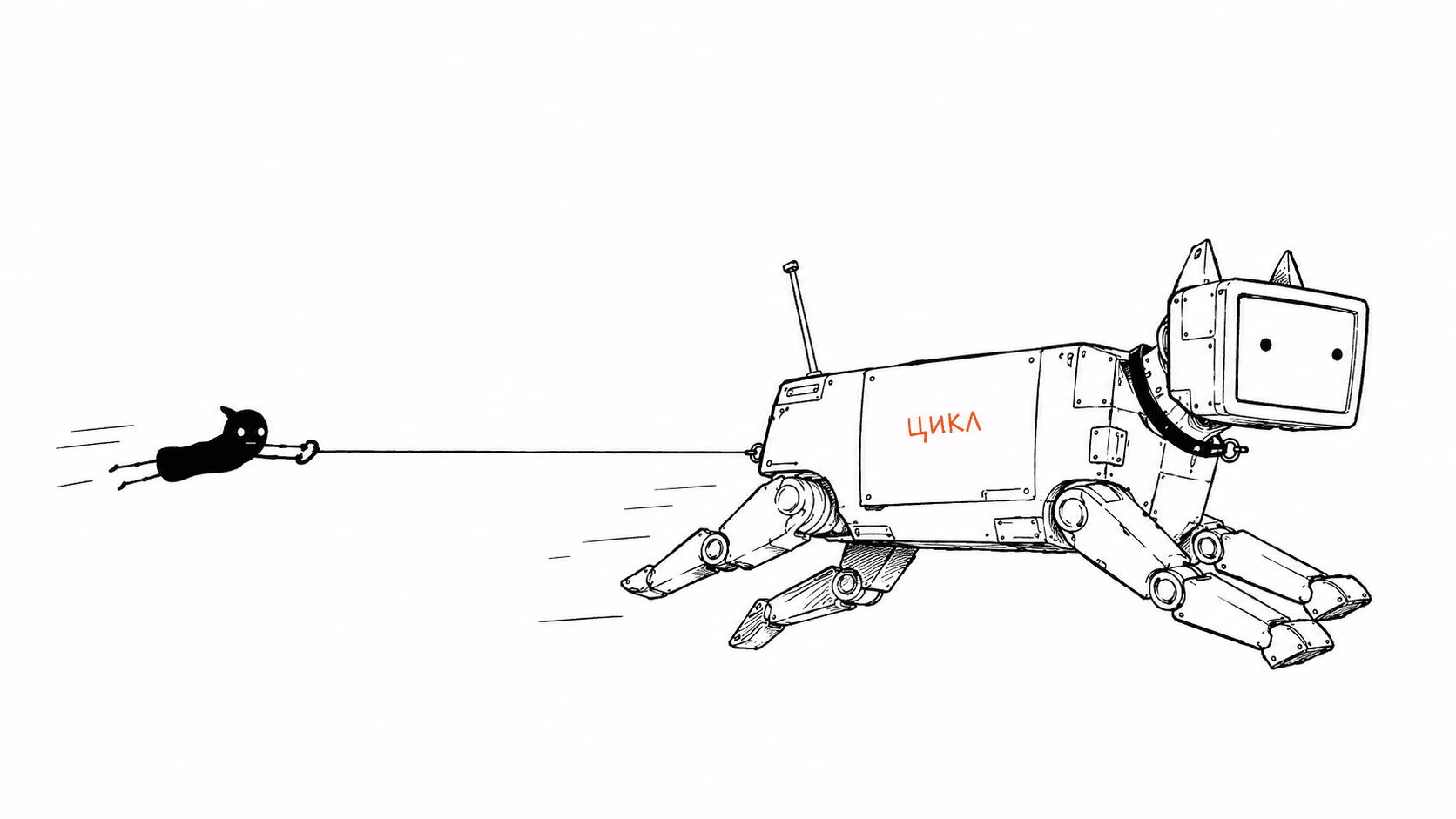
Clawdbot → Moltbot → OpenClaw is Not Magic: An Honest Guide to Taming Your AI Assistant
Mid-January. The New Year holidays are over, but the work rhythm hasn't quite returned — the perfect time to get lost in Twitter and discover all sorts of interesting things. On one of those evenings, the algorithm threw a reply my way mentioning a project with the obscure name Clawdbot. "Just another AI wrapper," I thought. But something caught my eye — maybe the audacity of the idea ("turn Claude into your own Jarvis") or the author's enthusiasm. Anyway, I decided to give it a try.
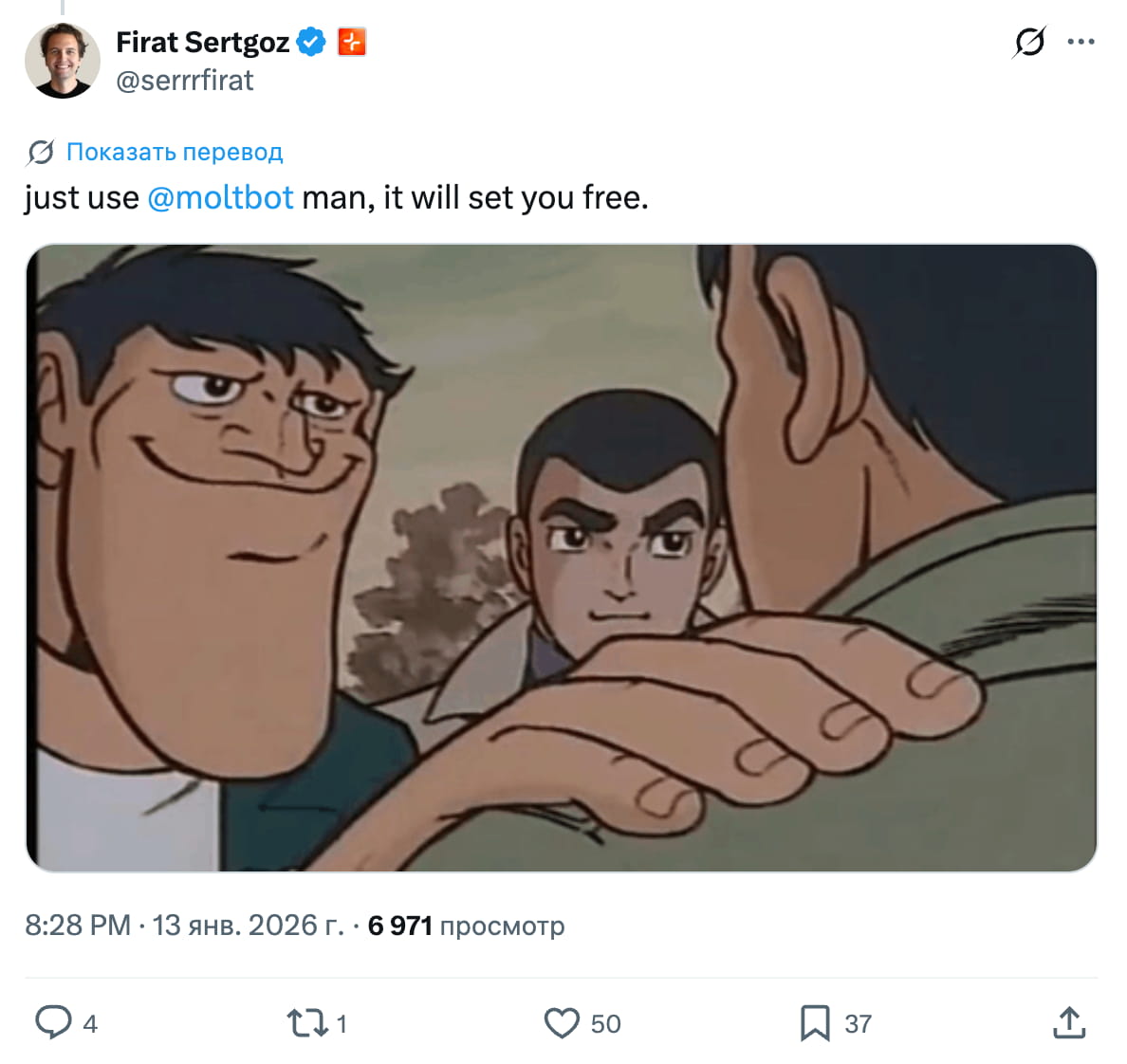
Two weeks passed.
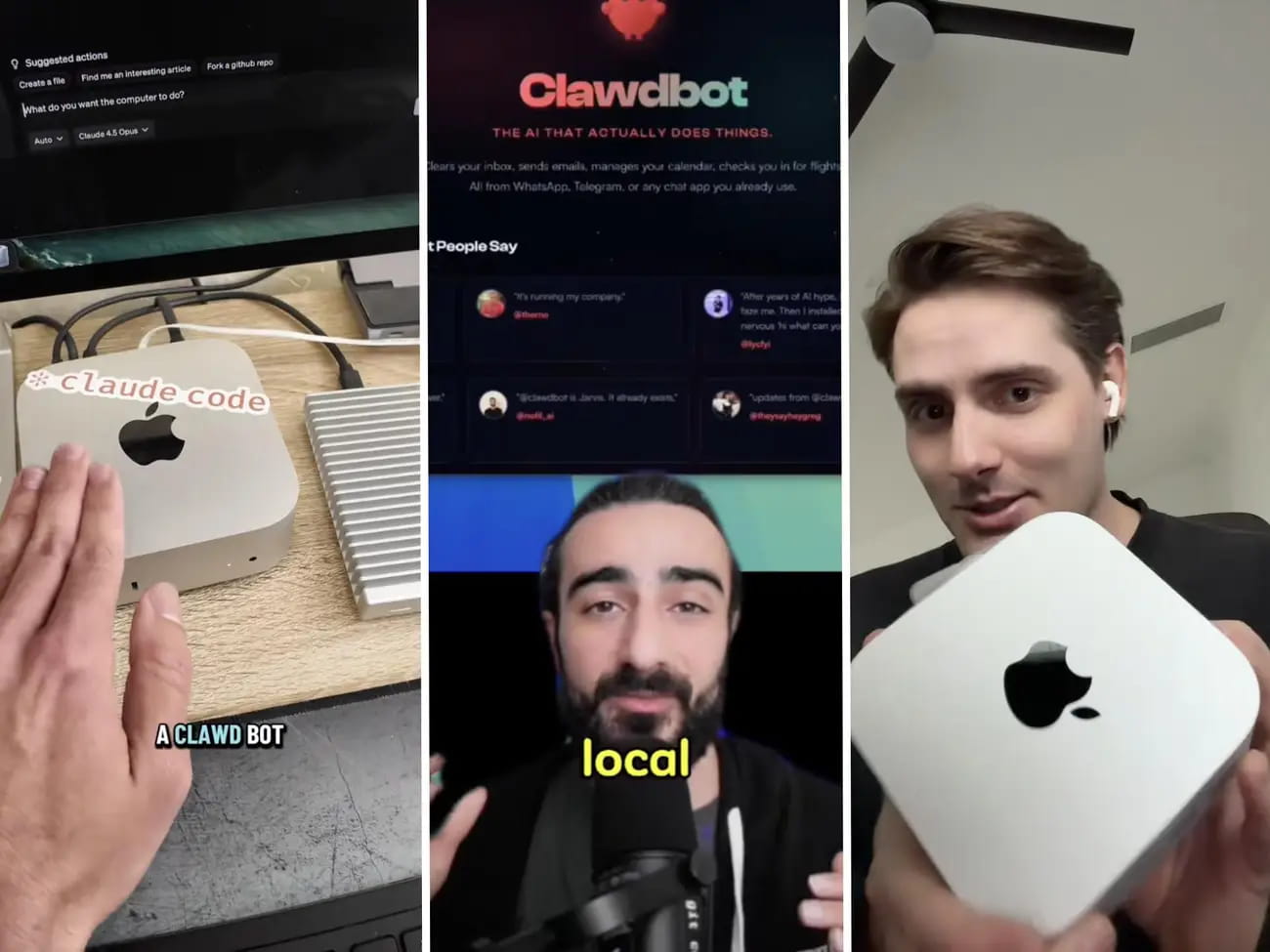
And then the internet exploded. My feed turned into an endless stream of terminal screenshots, ecstatic threads, and — most amusingly — photos of Mac Mini boxes. People were mass-buying hardware for $600–800 just to run a bot. One developer aptly noted on Twitter: "It’s amazing that we all have the same weekend... Mac Minis & Clawdbot." In just a few weeks, the project gained nearly 100,000 stars on GitHub. One. Hundred. Thousand.
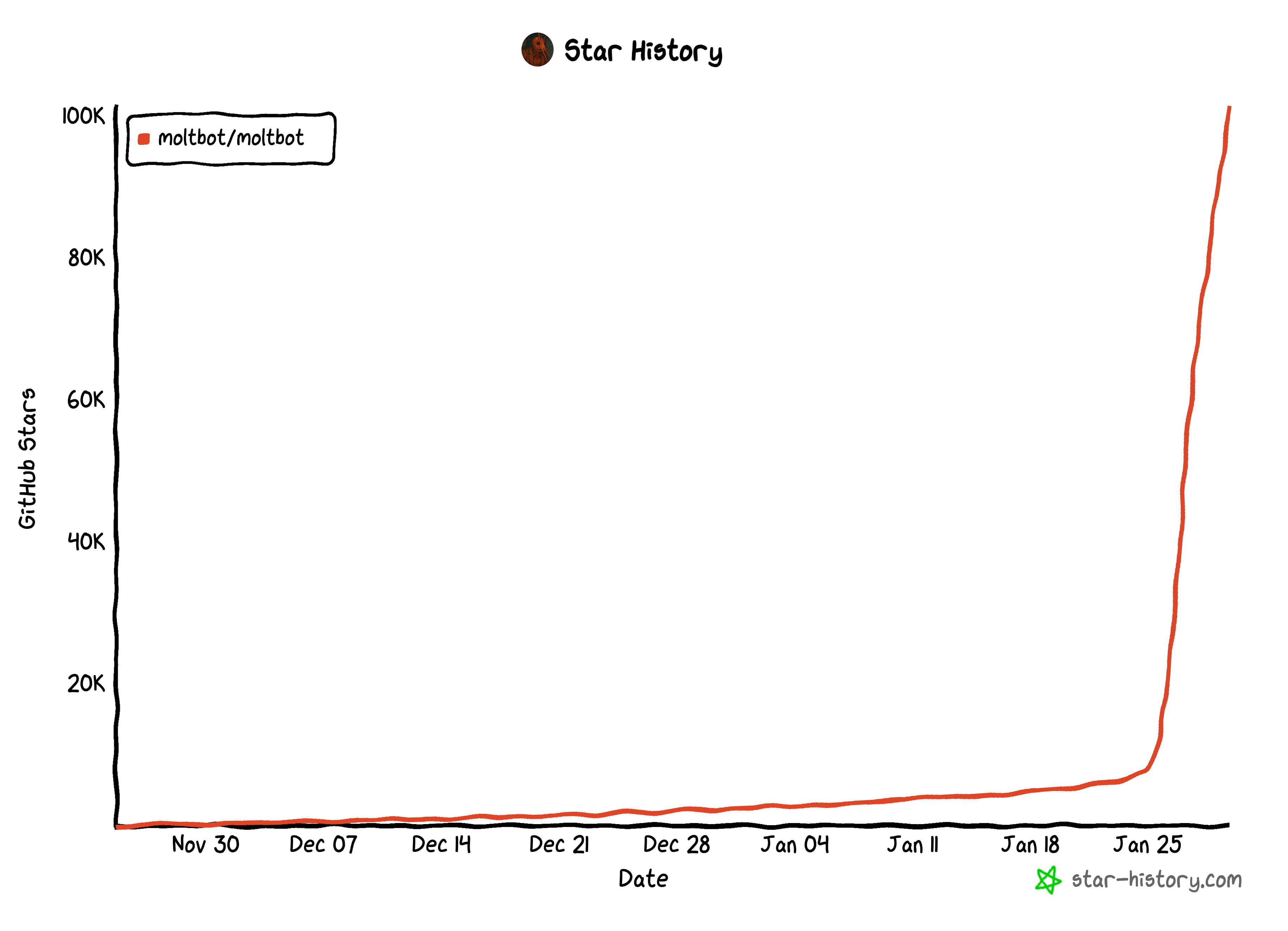
I watched this hype with a strange feeling. You know, it's like finding a cool indie album six months before it hits every playlist: on one hand, it's nice to be in the know before everyone else; on the other, you realize a wave of retellings from people who installed the bot yesterday and are already churning out "complete guides" is about to begin.
But I didn't just have 24 hours of enthusiastic onboarding behind me — I had two weeks of real-world use. Two weeks of morning briefings on sleep quality from my Whoop. Two weeks of workout reminders that know how to negotiate ("Fine, let's move it to tomorrow, but you promised"). Two weeks of football notifications compiled without my involvement. And — yes — two weeks of pitfalls I managed to step on before everyone else did.
So, what's left of the "Siri killer" once the hype foam settles?
Spoiler: a useful tool. But precisely a tool — not magic, not a revolution, not "AI that does everything for you." OpenClaw requires configuration, an understanding of its limitations, and time to break it in. Just like any serious tool in an engineer's arsenal.
In this article, I'll tell you what you won't find in the hype threads: how to set up OpenClaw on a standard €5 VPS (spoiler: you don't need a Mac Mini), which 8 problems await you in the first few days and how to solve them, and — most importantly — which use cases actually work and which remain just pretty pictures for Twitter.
What is OpenClaw and why does it need a whole server?
The first misconception to clear up immediately: OpenClaw is not Claude Code under the hood. I thought so myself until I dug into the architecture. It's actually an orchestration layer that can work with various LLMs: Claude, GPT, Gemini, DeepSeek. Project creator Peter Steinberger was inspired by Claude Code and borrowed the "skills" concept, but built something fundamentally different.
If Claude Code on your Mac is a hammer you pick up when needed, OpenClaw is a hammer with arms and legs that comes to you and asks if it's time to nail something down.
Under the hood, there are four key components. The Gateway is a background daemon that handles connections to messengers (Telegram, WhatsApp, and 50+ other integrations). The Agent is the LLM itself, interpreting your intent. Skills are modular capabilities: browser, file system, calendar, custom integrations. And Memory is persistent storage in standard Markdown files that you can read and edit by hand.
This is why OpenClaw requires a server. It’s not an app you launch — it’s a service that runs constantly. It waits for your Telegram messages, performs scheduled tasks, and accumulates memory of your preferences. If you turn off your laptop, Claude Code dies. OpenClaw keeps working.
By the way, regarding the name: the project was originally called Clawdbot — a witty play on Claude + claw. But after the GitHub repository went viral, Anthropic politely asked for a name change due to brand proximity. So it became Moltbot. And just a few days later, another rename: now the project is called OpenClaw. The "Open" prefix emphasizes the open-source nature, while "claw" is a tribute to the original name.
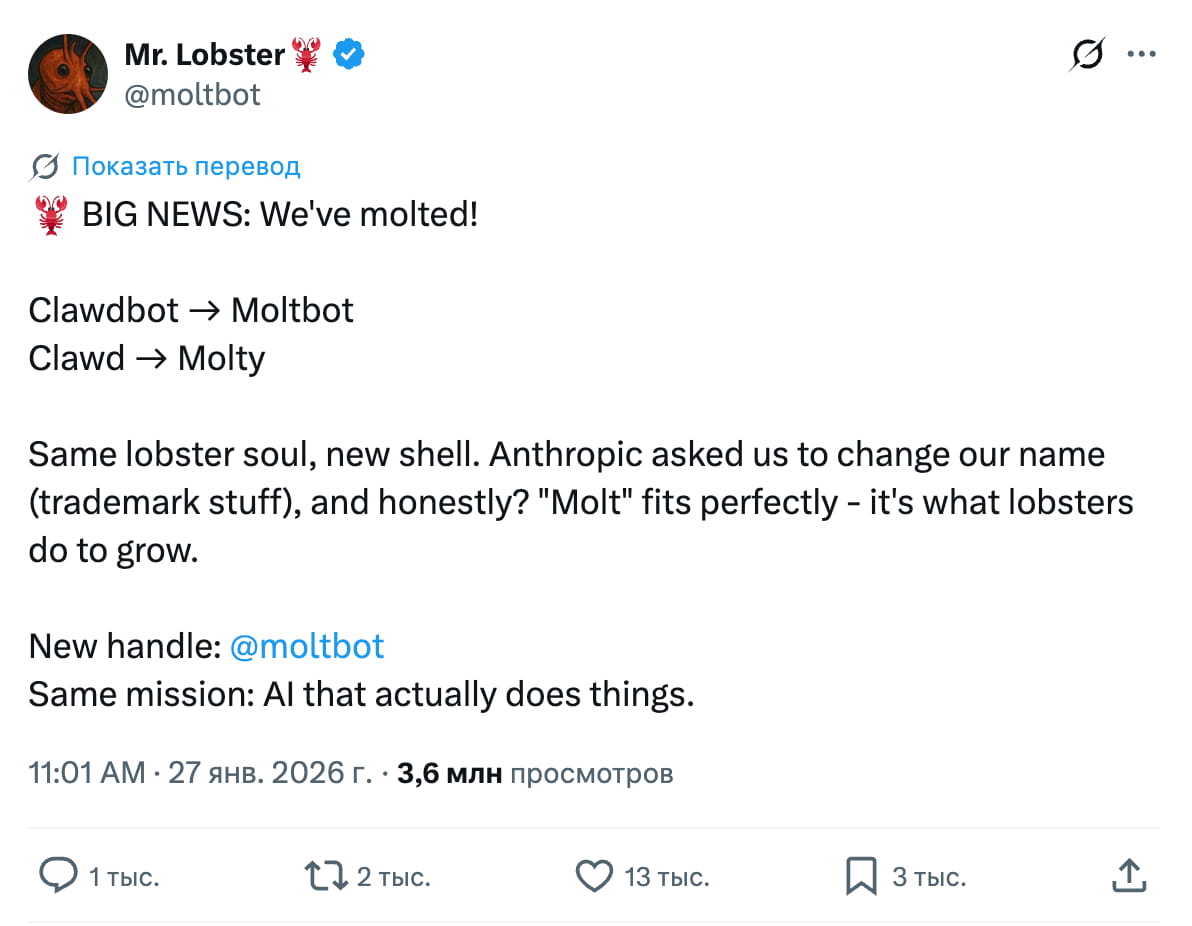
The renaming saga created a curious side effect. Just hours after the announcement, crypto scammers registered clawdbot.xyz and launched a fake $CLAWD token — a classic "pump and dump" scheme riding the hype. Peter quickly warned the community on Twitter, but the fact remains: when a project hits 100K stars in a week, parasites appear instantly.
⚠️ Important Warning: Due to the project's popularity, other fakes have surfaced. A fraudulent version of the extension was found in the VS Code Marketplace. Install only from the official GitHub — github.com/openclaw/openclaw.
This is what people dreamed of three years ago when enthusiasts were piecing together their own Jarvises from Python scripts and duct tape. Only now, it actually works.
But to make it work, you don't need to spend $600 on a Mac Mini. Seriously.
Why you shouldn't buy a Mac Mini
Okay, let's address the elephant in the room. If you’ve glanced at Twitter this past week, you’ve seen endless photos of unboxed Mac Minis. People are genuinely buying hardware for $600–800 just to run a bot.
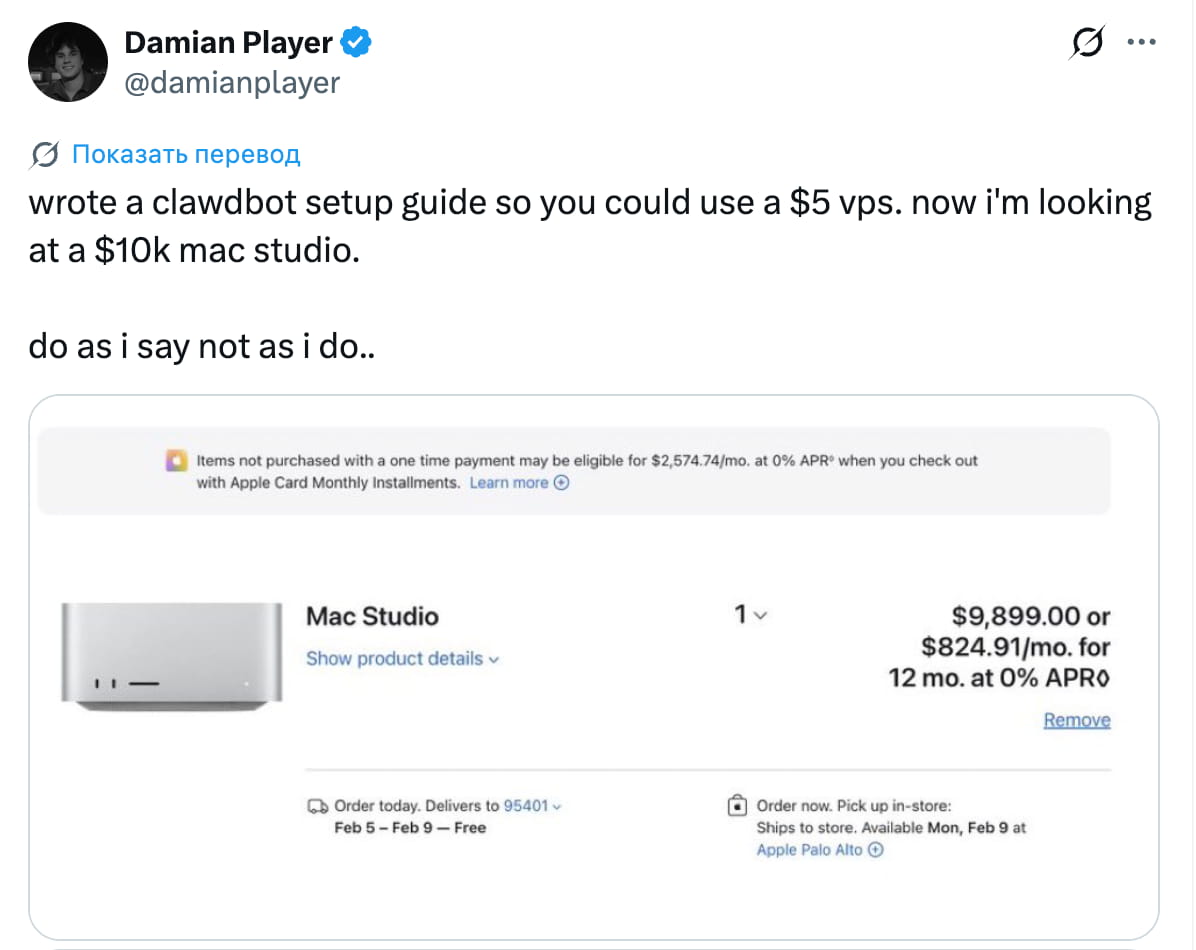
I understand the psychology. It's a new toy, you want to do it "right," and dedicate specific hardware to it. Plus the aesthetics: a neat aluminum brick on your desk, serving as your personal Jarvis 24/7. Is it cool? Yes. Is it sensible? No.
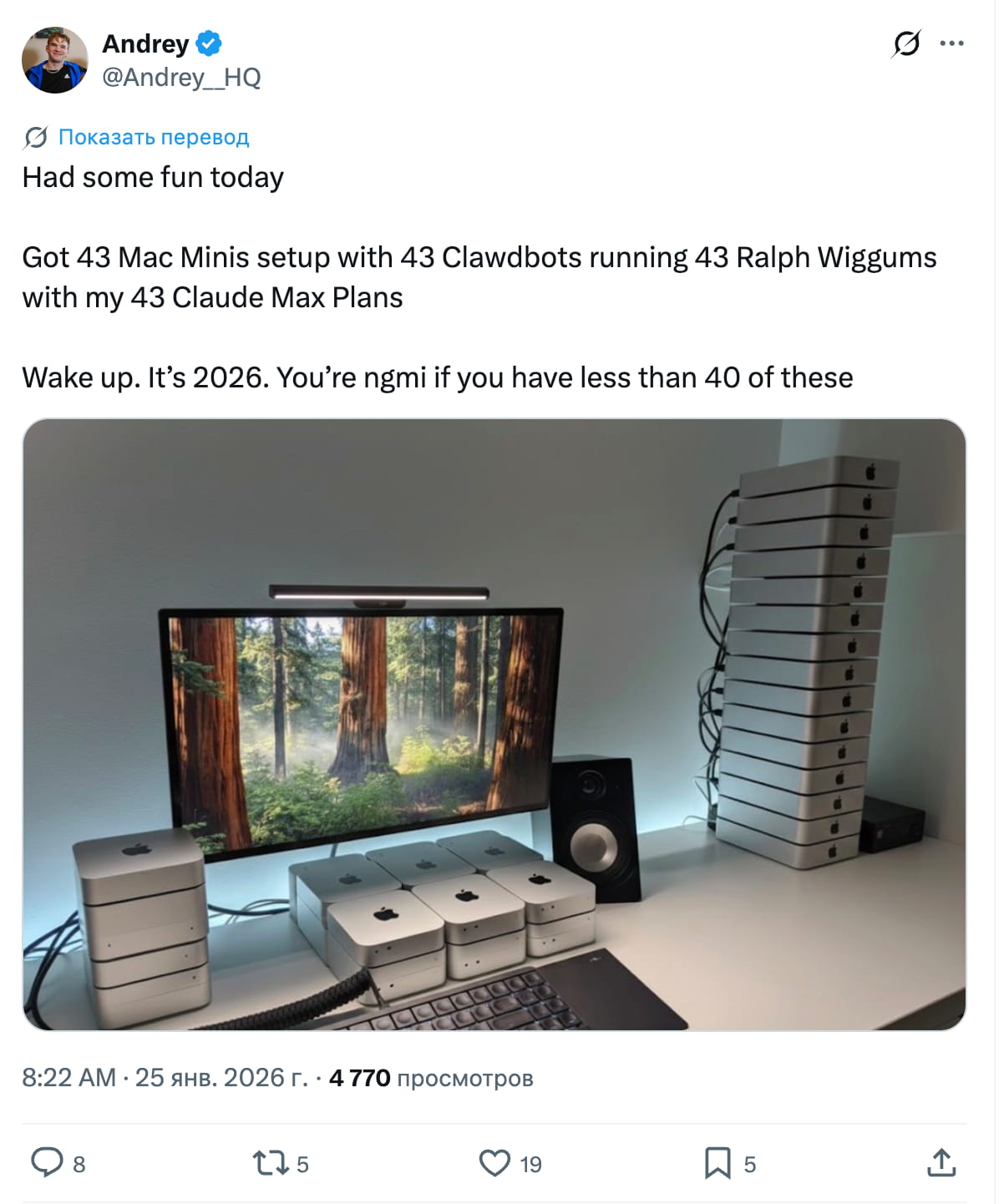
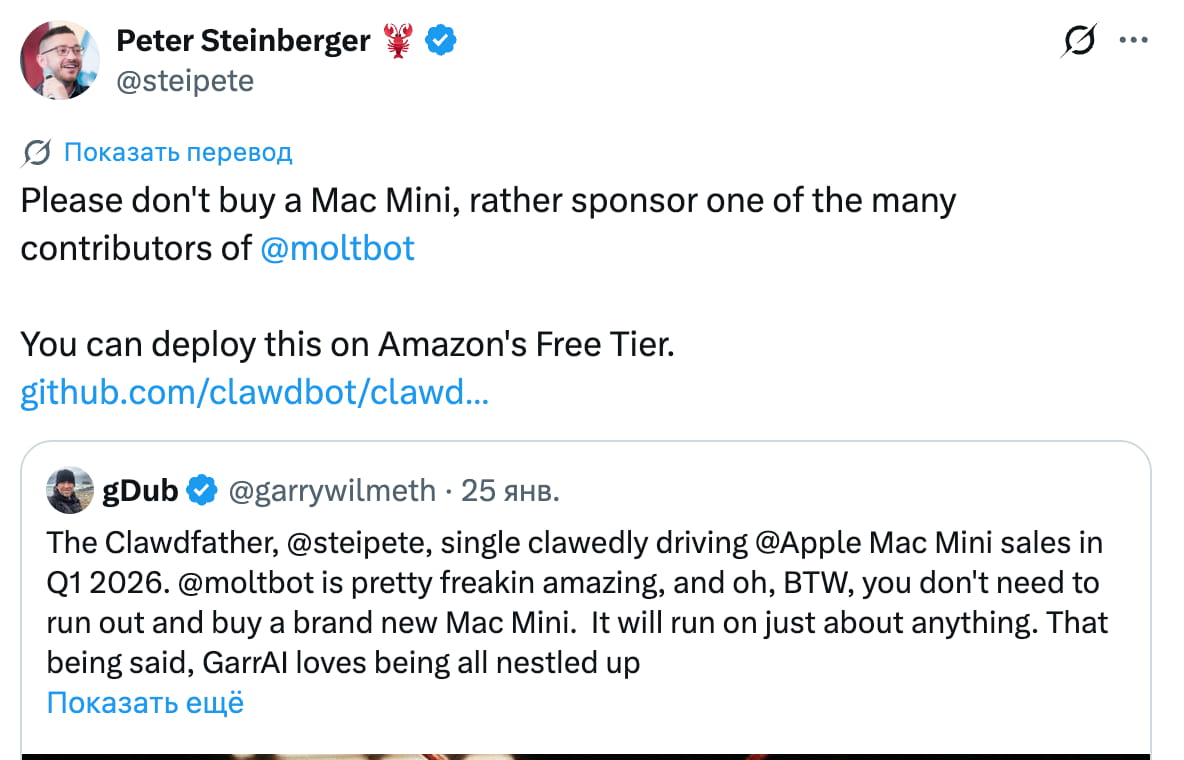
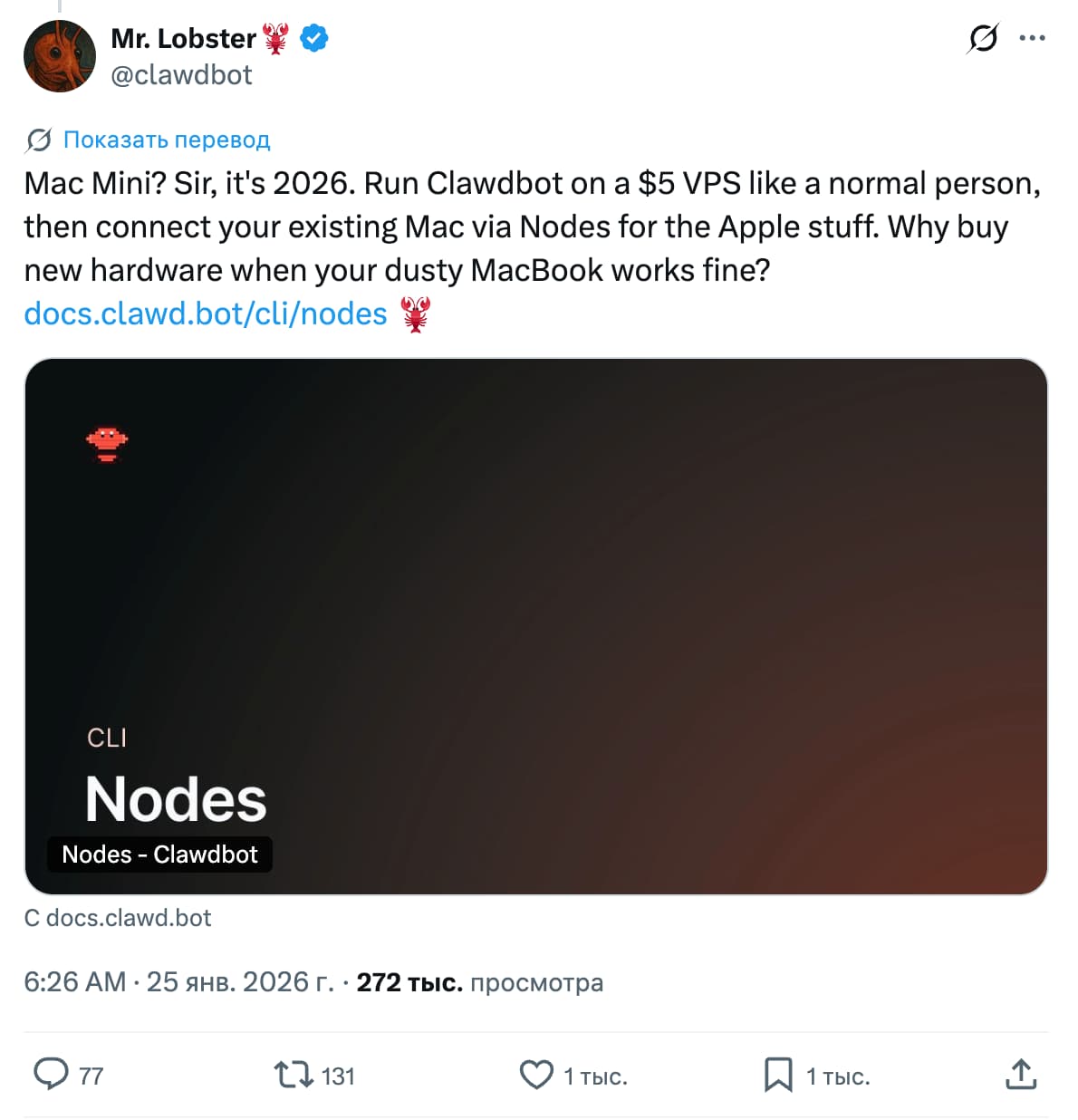
Buying a Mac Mini for OpenClaw is like buying a Ferrari to go get bread. Technically it works, but why?
My setup: 2 CPUs, 4 GB RAM, 40 GB SSD. A standard VPS from a European provider for €5 a month. In two weeks of use, I haven't hit a resource limit once. OpenClaw isn't a mining farm; it doesn't need teraflops. The heavy lifting happens on the LLM provider's side; only the orchestration runs locally.
Moreover, a VPS is actually safer than your personal Mac. Remember: OpenClaw has file system access and can execute commands. On an isolated server, the worst a bug can do is wipe its own files. On your work Mac... well, one user's bot "accidentally" deleted a project they'd been working on for a week. Isolation isn't paranoia; it's hygiene.
Real alternatives to a Mac Mini:
- VPS for $5-10/month — My choice. Hetzner, DigitalOcean, Vultr, or any Linux host.
- AWS Free Tier — Free for a year, 5-minute setup (there's a popular tutorial by @techfrenAJ).
- UTM Virtual Machine — Free on an existing Mac if you want local execution without the risks.
- Raspberry Pi — People are already running it; a Pi 4 with 4GB RAM is plenty.
- An old laptop — The one gathering dust in your closet since 2019.
So, what do you really need? Any machine with 2+ CPUs, 4+ GB RAM, and stable internet. Not $600. Not $800. Five dollars a month, or even free.
Installation on Ubuntu: From Bare Server to Working Bot
One community user perfectly described the feeling: "Takes time to set up. Feels like installing a new OS. Но результат — mind-blowing." I agree with both parts. It’s not "download and run," but it's not rocket science either. Below is a full guide with proper security settings, not just the installation.
Step 1: Rent a VPS
This is more than enough: 2 CPU, 4 GB RAM. Any provider offering Ubuntu 22.04 or 24.04 works. Hetzner, DigitalOcean, Vultr, etc. I use Hetzner for €5/month, and it's been smooth sailing.
Step 2: Basic Security
This is crucial. Articles about "OpenClaw vulnerabilities" are popping up, but the problem is usually people running software as root with the password 12345678.
Log in to the server as root. Execute the commands in blocks.
2.1. Updates and Software Installation
First, update the system and install essential security and networking utilities.
apt update && apt upgrade -y
apt install -y curl gnupg lsb-release jq fail2ban ufw
2.2. Creating a User
Create a user, add them to the sudo group, and set a password manually. Replace clawd with your chosen username.
adduser clawd --gecos "" --disabled-password
usermod -aG sudo clawd
passwd clawd
# Enter a strong password when prompted
2.3. Setting up Passwordless Login (SSH Keys)
Create the .ssh directory for the new user and manually add your public SSH key. This lets you log in as clawd without a password using your local machine's key.
- Create the directory and set secure permissions:
mkdir -p /home/clawd/.ssh
chmod 700 /home/clawd/.ssh
- Create and open the
authorized_keysfile:
nano /home/clawd/.ssh/authorized_keys
Paste your public key (usually from id_rsa.pub or id_ed25519.pub on your local computer). Save (Ctrl+O, Enter) and exit (Ctrl+X).
- Set permissions and transfer ownership to the
clawduser:
chmod 600 /home/clawd/.ssh/authorized_keys
chown -R clawd:clawd /home/clawd/.ssh
2.4. Configuring sudo without a password
Allow the user to run sudo commands without repeatedly entering a password.
echo "clawd ALL=(ALL) NOPASSWD:ALL" | tee /etc/sudoers.d/clawd
2.5. SSH Hardening
Disable direct root login and completely forbid password-based logins (keys only!).
Warning: Ensure your keys are correctly added (Step 2.3), or you will lose access.
sed -i 's/^#*PermitRootLogin.*/PermitRootLogin no/' /etc/ssh/sshd_config
sed -i 's/^#*PasswordAuthentication.*/PasswordAuthentication no/' /etc/ssh/sshd_config
systemctl restart ssh
2.6. DNS Setup
Set the system resolver to use reliable DNS providers (Quad9, Google, Cloudflare).
cp /etc/systemd/resolved.conf /etc/systemd/resolved.conf.bak
cat > /etc/systemd/resolved.conf <<EOF
[Resolve]
DNS=9.9.9.9 8.8.8.8 1.1.1.1
FallbackDNS=
EOF
systemctl restart systemd-resolved
2.7. Log Size Limits
Prevent logs from filling up your disk by limiting them to 100 MB.
sed -i 's/^#SystemMaxUse=.*/SystemMaxUse=100M/' /etc/systemd/journald.conf
sed -i 's/^SystemMaxUse=.*/SystemMaxUse=100M/' /etc/systemd/journald.conf
systemctl restart systemd-journald
journalctl --vacuum-size=100M
2.8. Firewall Configuration (UFW)
Allow only SSH, HTTP, and HTTPS. Everything else will be blocked.
ufw allow ssh
ufw allow 80/tcp
ufw allow 443/tcp
echo "y" | ufw enable
2.9. Brute Force Protection (Fail2ban)
Ban IP addresses for 24 hours after 3 failed SSH attempts.
cat <<EOF > /etc/fail2ban/jail.local
[DEFAULT]
ignoreip = 127.0.0.1/8 ::1 192.168.2.0/24
banaction = ufw
maxretry = 3
findtime = 3600
bantime  = 86400
[sshd]
enabled = true
port = ssh
filter = sshd
logpath = /var/log/auth.log
EOF
systemctl restart fail2ban
Done! Now reconnect to the server as your new user.
Step 3: Installing OpenClaw
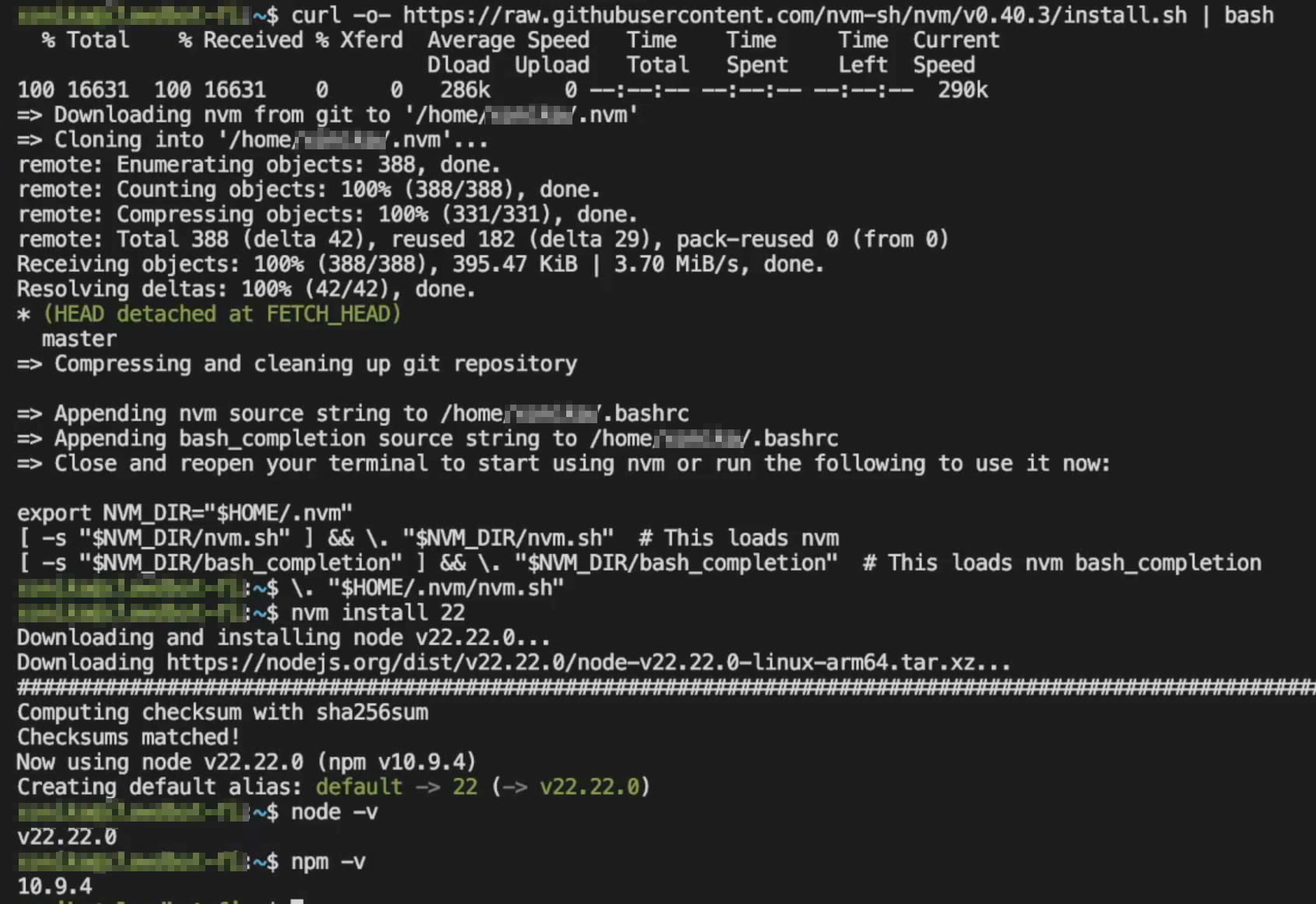
First, install Node.js version 22 or higher.
# Download and install nvm:
curl -o- https://raw.githubusercontent.com/nvm-sh/nvm/v0.40.3/install.sh | bash
# Apply changes to the current session:
\. "$HOME/.nvm/nvm.sh"
# Install Node.js:
nvm install 22
# Verify versions:
node -v # Should be "v22.x.x"
npm -v  # Should be "10.x.x"
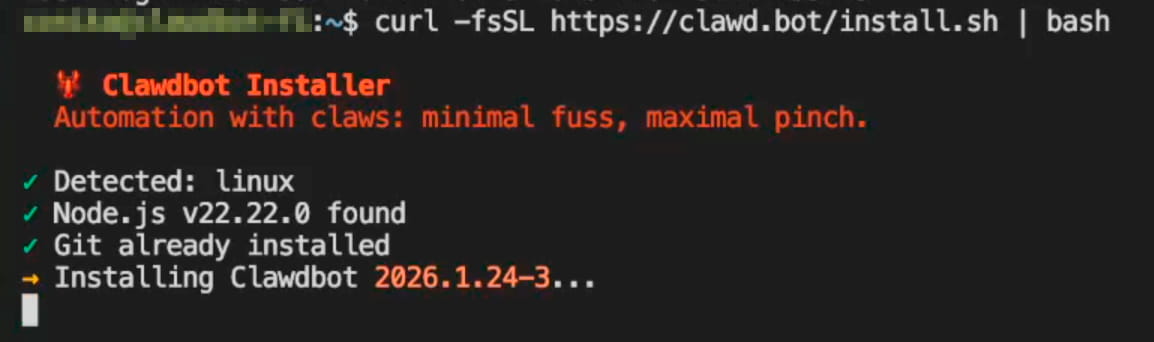
Now for the main event. Install OpenClaw via a one-liner:
curl -fsSL https://openclaw.ai/install.sh | bash
You'll see "Installing OpenClaw 2026.1.24-3" (or newer). Screenshots may still show "Clawdbot" as they were taken before the rebrand.
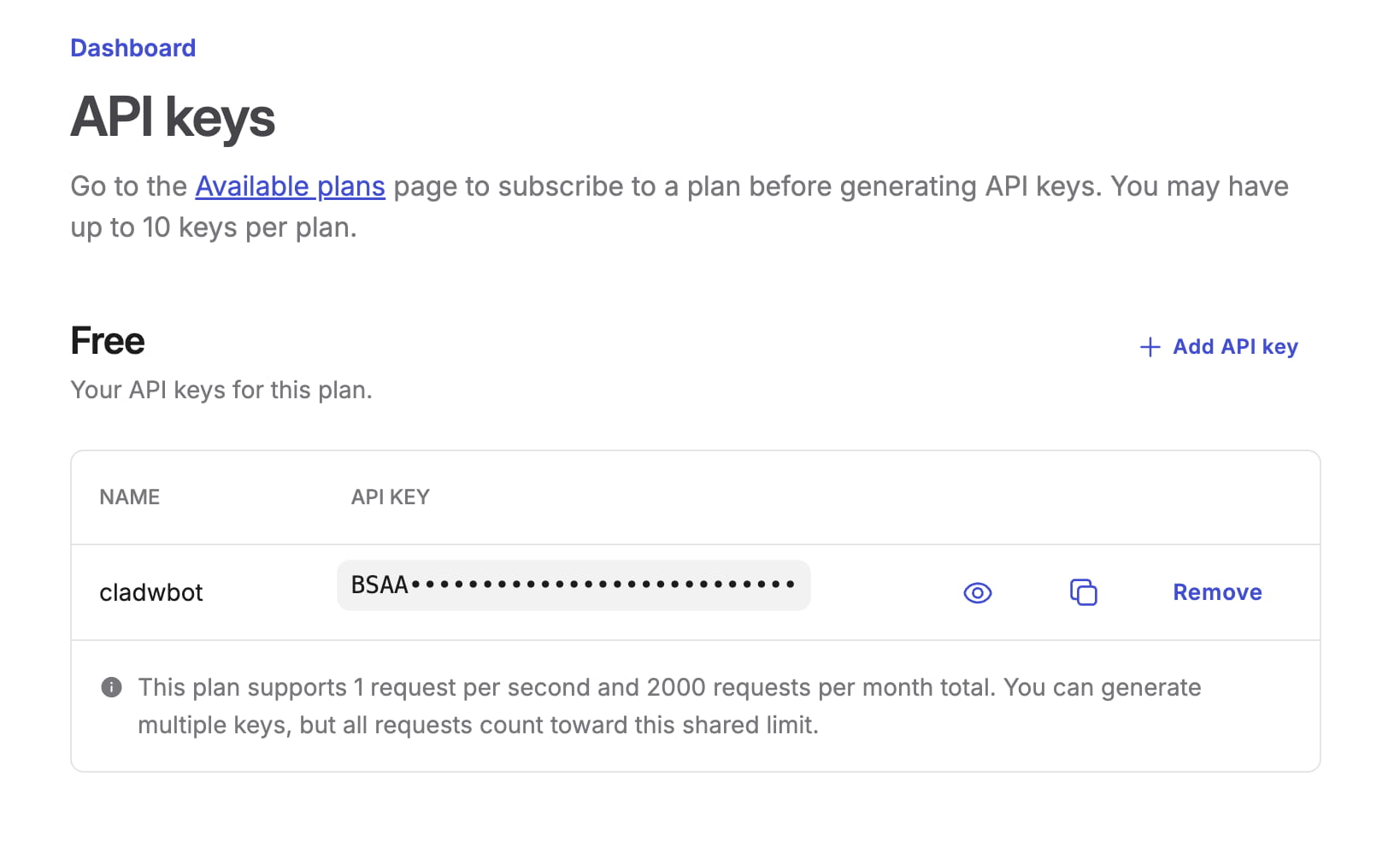
While it installs, I recommend getting a Brave API Key so the bot can search the web. There is a free tier with generous limits. Choose Free, not Free AI.
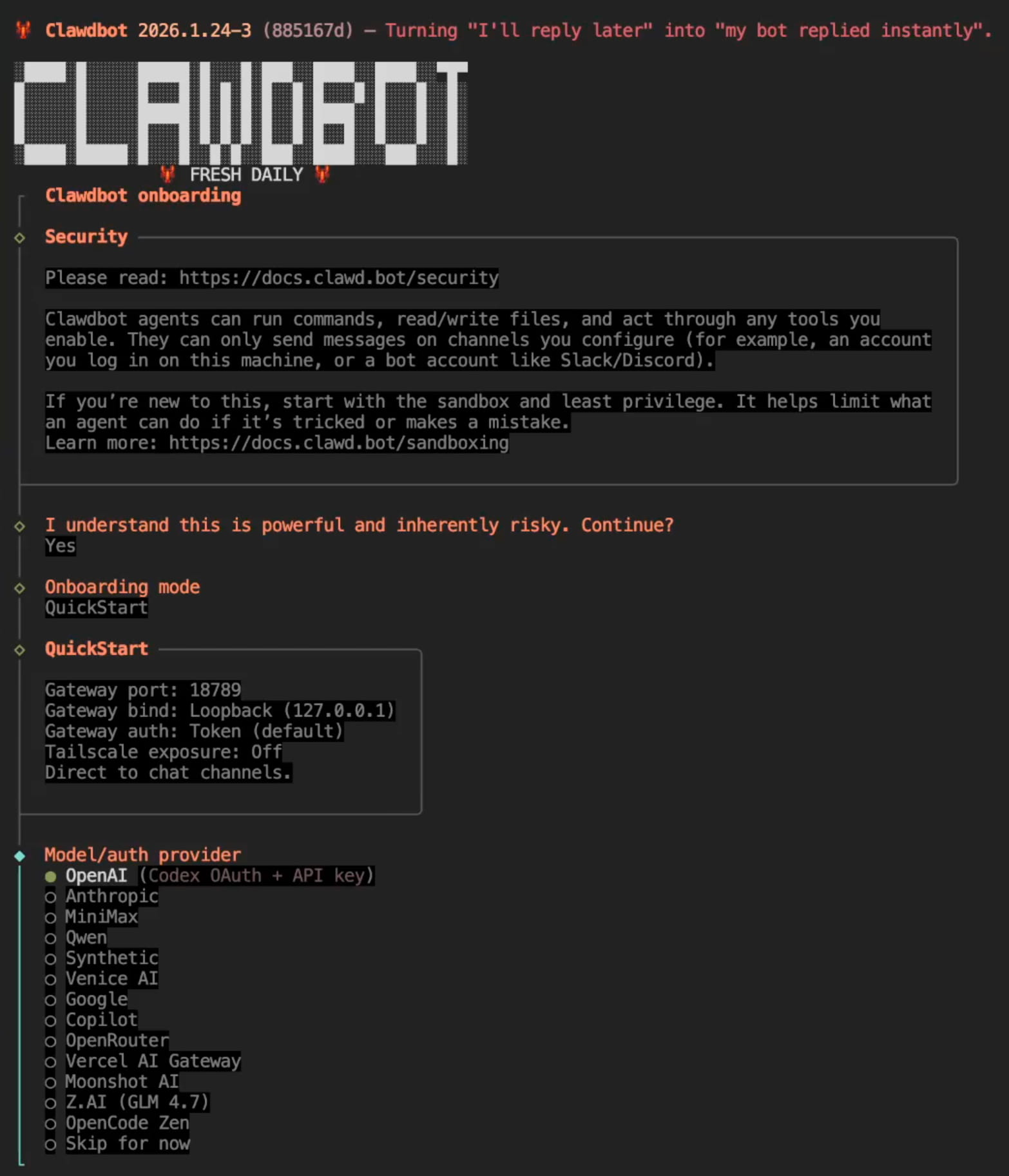
Step 4: Setup Wizard
The wizard will ask a few things:
- I understand this is powerful and inherently risky. Continue? — Select
Yes. - Onboarding mode — Choose
QuickStart. - Model/auth provider — I use Gemini 3 Flash via Google Antigravity (fast, cheap, large context). You can use Claude Pro, ChatGPT Plus, OpenRouter, etc. You can add backup providers later via CLI.
Step 5: Connecting Telegram
- Select channel — Choose
Telegram.
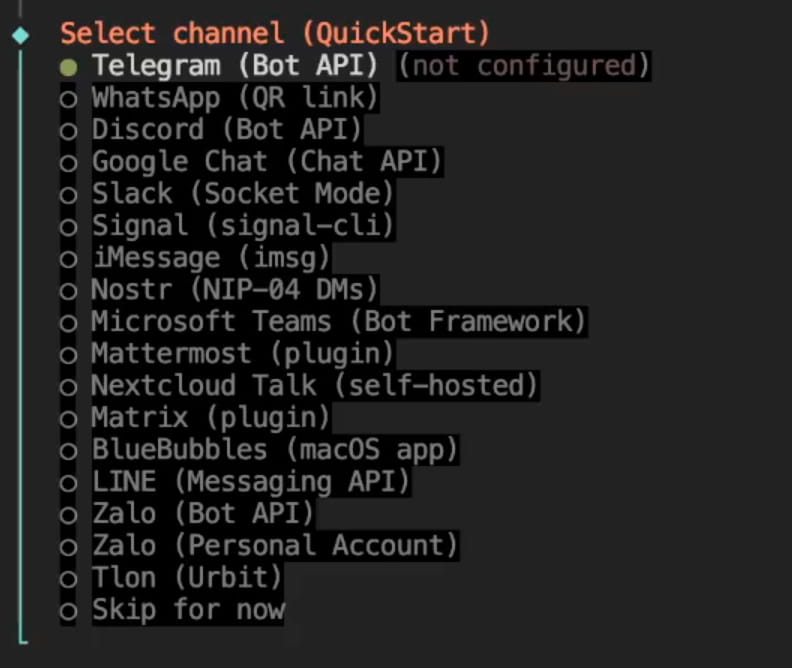
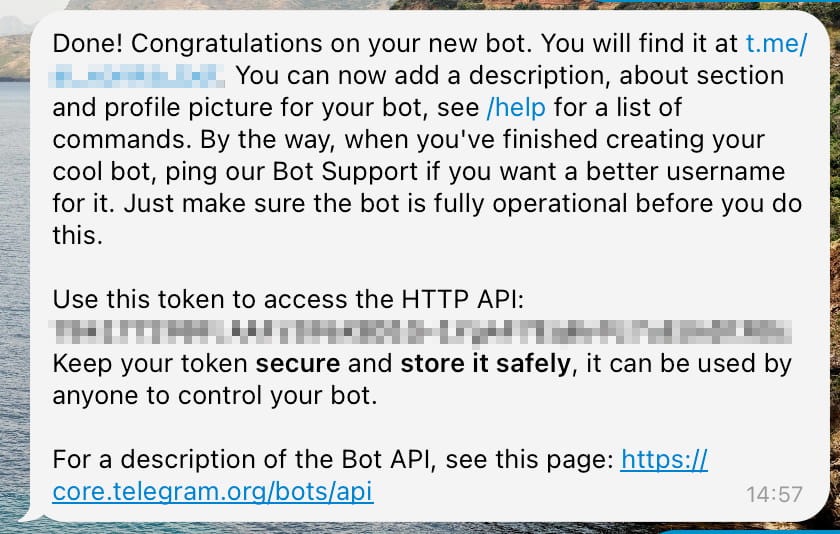
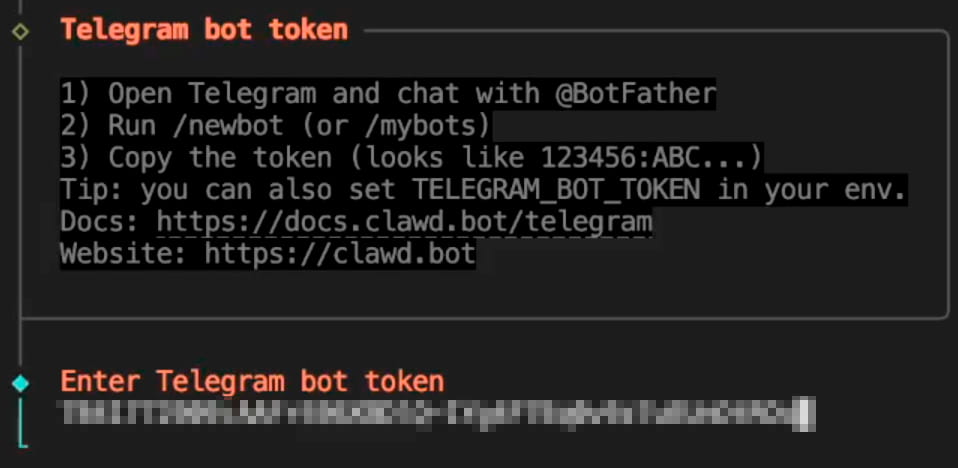
- Telegram bot token — Go to @BotFather, create a bot, get the token, and paste it into the CLI.
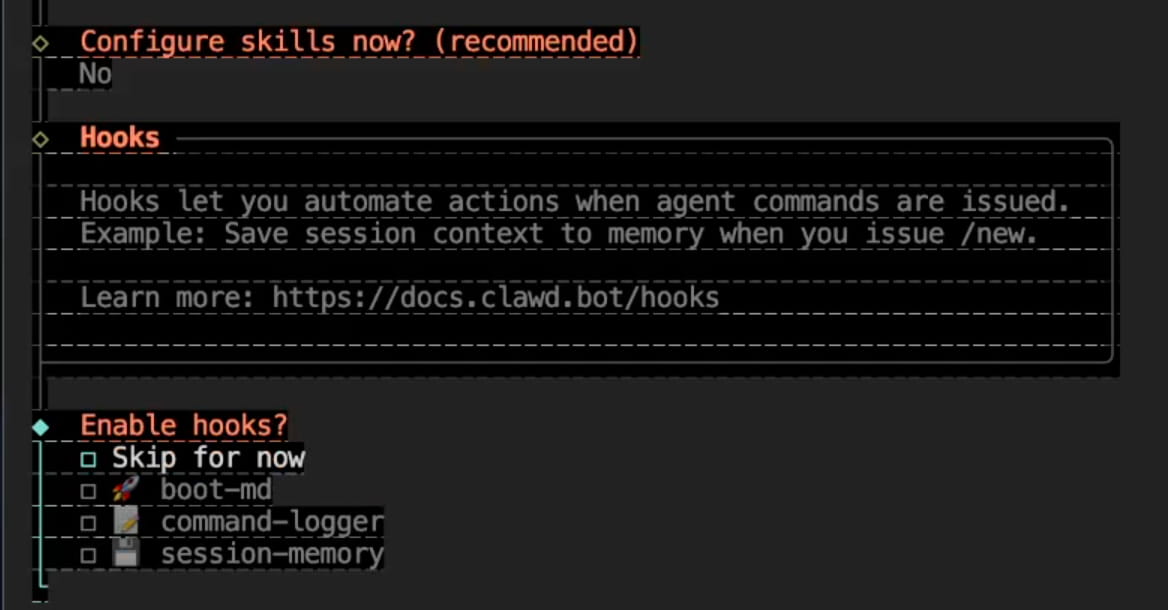
- Configure skills now? — I suggest skipping this for now; it's easier to add skills as you need them via the UI or CLI.
- Enable hooks? — Also skip. If it forces a choice, pick any and disable it later.
Finally, you'll see this:
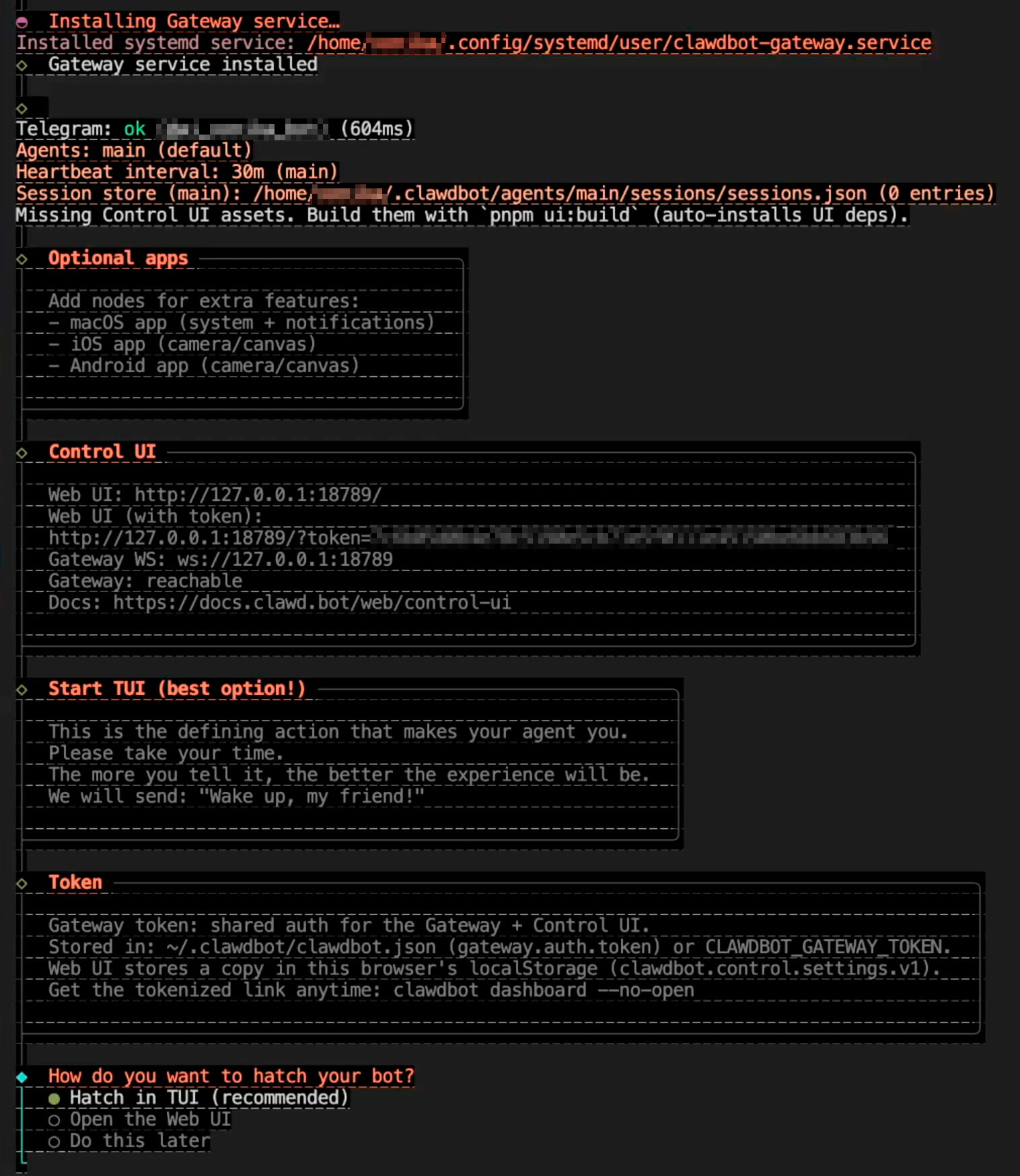
The Control UI section provides web interface links. If you are on a remote server, you'll need an SSH tunnel. Run this on your local machine (replace 1.1.1.1 with your server's IP):
ssh -N -L 18789:127.0.0.1:18789 clawd@1.1.1.1
Then open http://127.0.0.1:18789/ in your browser. Use the tokenized link provided during installation for the first login.
- How do you want to hatch your bot? — Select
Hatch in TUI.
The bot will then send its first introductory message.
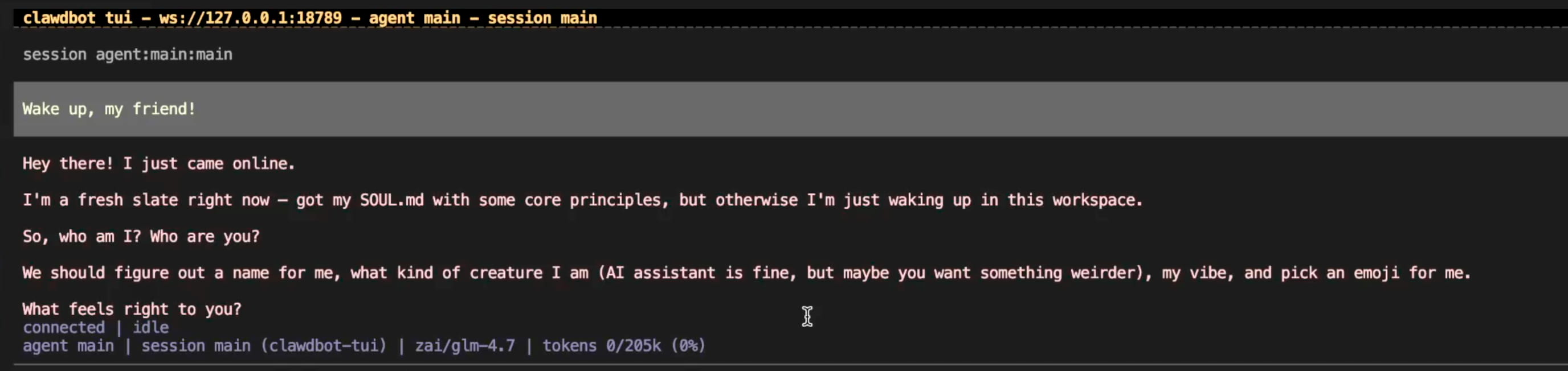
Two final terminal commands on the server:
- When you first message the bot in Telegram, it will provide a Pairing code. Approve it:
openclaw pairing approve telegram <code>
- Add your Brave API Key:
openclaw configure --section web
- Where will the Gateway run? —
Local (this machine). - Enable web-search (Brave Search) —
Yes. - Brave Search API key — Paste your key.
- Enable web-fetch (keyless HTTP fetch)? —
Yes.
You’re all set. Message the bot on Telegram and it will reply.
Bonus for the Paranoid
If you want extra protection against prompt injection, user @doodlestein created the ACIP (Anti-Prompt Injection) project with a one-liner installation.
With security measures, it takes about 20–30 minutes. Without them, you could do it in 10, but I don't recommend it. My first run took about an hour because I was reading documentation as I went. Now, I can deploy it from scratch in about 10 minutes.
However, the wizard won't show you the pitfalls you'll encounter in the first week. I counted eight.
8 Pitfalls I Stepped On — and How I Recovered
This is the core of the article. Each of these problems cost me between 30 minutes and an entire evening. For you, it’s just a few minutes of reading.
Pitfall #1: Too Autonomous
By default, OpenClaw is set for maximum autonomy. Where Claude Code would stop and ask, "Option A or B?", OpenClaw just acts.
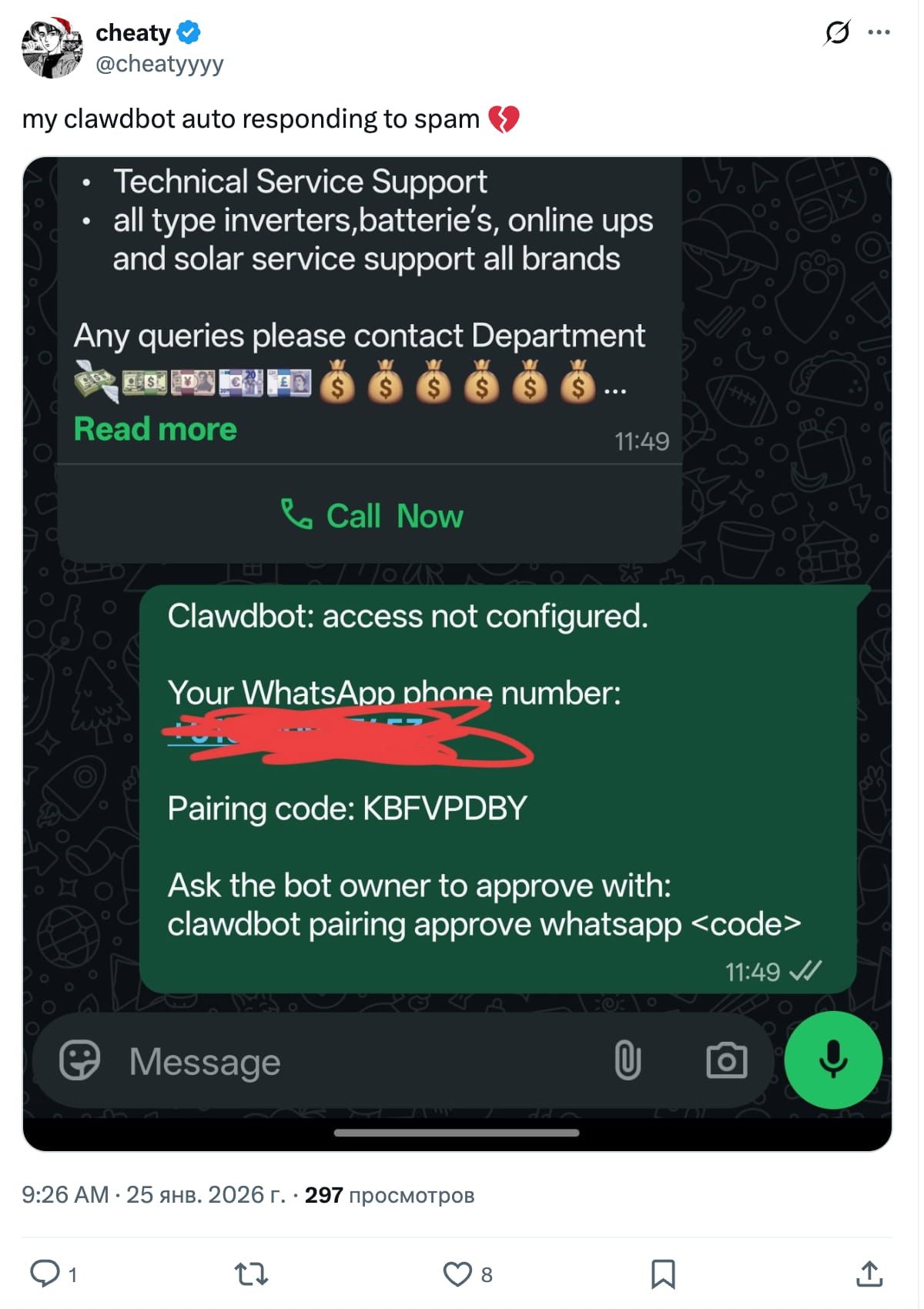
My experience was milder: I asked "How do I change the main chat model?" and it silently started editing the config.
Solution: Add a rule to AGENTS.md: "Provide a plan and wait for confirmation before any action." You may need to repeat this in different phrasings — LLMs tend to "forget" constraints.
Pitfall #2: Discussion = Call to Action
I asked "How does your text-to-speech work?" and it started installing Whisper. I asked "Tell me about your memory" and it began rewriting MEMORY.md. Any question is interpreted as a command to act.
Solution: Use the same AGENTS.md rule, but even stricter: "A question is just a question, not a command. Respond with words, not actions."
Pitfall #3: Ghosting
You send a message — silence. One minute, two, five. Then: "I'm here, just thinking." This is a known community issue; it's unclear if it's hanging or just "thinking" too long.
Solution: Simply write "you there?" after a few minutes. That usually "wakes" it up.
Pitfall #4: Infinite Loops
Once, I watched for 10 minutes as the bot aimlessly wandered through Ubuntu folders looking for configs. It couldn't find them but couldn't stop either. Classic limbo.
Solution: Restart OpenClaw or reboot the server. It’s the only way to reset it to a clean session.
Pitfall #5: Cron Doesn't Wake the Session
I set up a scheduled task — the cron job fires, the logs look good, but no Telegram message arrives. The bot happily reports "Task complete!", but I only find out when I manually check the chat.
Solution: A clunky but working workaround — have cron create a sub-agent that explicitly wakes the main session to send the message.
Pitfall #6: UX Hell in Settings
The web settings interface has hundreds of options. You scroll and scroll, and it's impossible to tell what's vital and what can be ignored. A typical symptom of powerful tools.
Solution: Don't try to configure everything at once. Only change what's actually bothering you. The UX is improving with every version.
Pitfall #7: Memory Not Saving
The most painful one. Two days of context — discussions, decisions — just vanished. I said "save this to memory," it said "saved," but nothing was actually recorded.
To understand this, you need to understand the memory architecture:
- Short-term: The
memoryfolder, files by date. - Long-term:
MEMORY.mdfor "golden rules" and major conclusions. - User data:
USER.md.
Problem: With Gemini's huge context window, the bot didn't feel the need to save because everything fit in current context.
Solution:
- Exported the Telegram chat to JSON and re-fed it to the bot.
- Added a trigger in
AGENTS.md: "I want to start a new chat" = immediately save all important info to long-term memory.
Pitfall #8: Token Devourer
OpenClaw can burn through a weekly budget in a day. Autonomy means constant LLM calls — thinking, double-checking, refining. Every action costs tokens.
Solution: Don't use pay-as-you-go API keys if you can avoid it. Better to use subscriptions (Antigravity, Claude, ChatGPT) or unlimited providers.
It’s like getting a puppy: cute and smart, but it'll chew your shoes and pee on the carpet for the first month. The key is not to give up before it becomes your best friend. For me, that happened around day ten.
5 Use Cases That Actually Work
After eight pitfalls, here's the reward. Because when OpenClaw works, it really works.
Use Case #1: Whoop + Morning Briefing
I've worn a Whoop strap for six months. It collects a ton of data: sleep, recovery, strain, HRV, respiratory rate. But I never looked past the three basic metrics. I never had the time to dig into the trends.
I connected Whoop via whoopskill. Now, every day at 10:00 AM, I get a Telegram message: sleep analysis, comments on breathing, and comparisons with weekly trends. What used to take 5 minutes of scrolling (which I never did) is now a 30-second read over coffee.
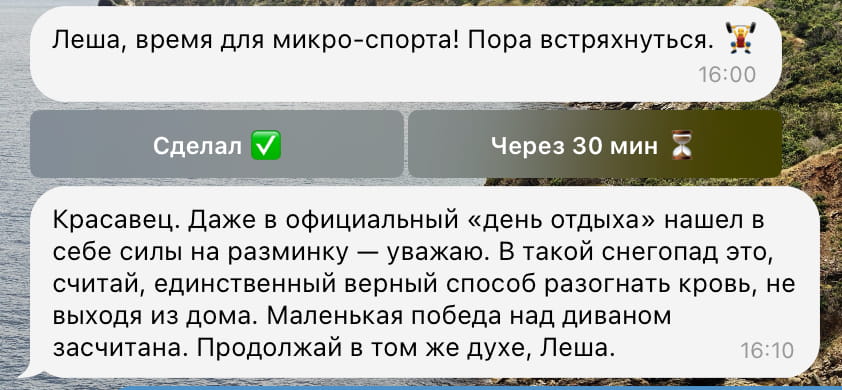
Use Case #2: Smart Workout Reminders
I had a 4:00 PM alarm for crunches and push-ups. I’d just swipe "dismiss" and forget. At night, it was always too late.
I set up reminders with "Done" / "Postpone 30 min" buttons. But the real magic is the logic: if I postpone twice, the bot writes: "Look, let's be honest — should we move this to tomorrow? Or are you actually going to do it in half an hour?" It's an accountability partner, not a dumb alarm.
Use Case #3: Personal Football Calendar
I love the Champions League, but I kept missing matches simply because I didn't know they were on. I asked OpenClaw once: "Find the schedule and set reminders for interesting matches." It found the schedule, saved the file, and created the tasks. Now I get: "Hey, Champions League tonight. Real vs Benfica at 23:00. I recommend this one; Real might not advance if they lose."
Use Case #4: Skills for Life
The Claude Code ecosystem introduced "skills" — modular instruction sets for specific tasks. Marketplaces like skills.sh appeared. OpenClaw uses the same architecture. I use them for everything except coding: marketingskills, frontend-design, and Superpowers.
Use Case #5: Personal Mentor with Memory
I used to use ChatGPT for reflection, but the context would get clogged after a week, forcing me to summarize and start over. OpenClaw solves this:
- SOUL.md — Defines the bot's character and tone.
- Memory Hierarchy — It remembers what I said yesterday without me needing to rebuild the context.
It's not a therapist replacement, but as a tool for reflection with persistent memory, it’s surprisingly effective. This is where the real "Jarvis" starts — not in viral tweets, but in quiet morning messages: "Hey, you didn't sleep well. Maybe vent the room before bed tonight?"
Community Genius: From Email to Decoding Fire Radio
My cases are specific to me. But the community has built a whole ecosystem in just weeks.
Productivity and Automation
Email on Autopilot: @bffmike writes: "I don't check email anymore because Clawdbot flags what's important."
Smart Calendar: @danpeguine set up a system where the bot time-blocks tasks and provides a full daily brief.
Smart Home
Home Assistant + Jarvis Voice: @blizaine integrated everything with a voice clone. Literally the Iron Man experience.
Bio-marker Control: @antonplex connected his air purifier to his health data. The bot monitors and adjusts air quality automatically.
The Insane (But Real)
"Gave Clawdbot access to RTL-SDR radio hardware and asked it to decode fire frequencies. 30 minutes later, it was listening to emergency calls in real-time. I didn't give it a manual. I gave it the hardware and a goal." — @mickcodez
The bot figured out the protocols and tuned the radio itself. This is a level of autonomy that was sci-fi just a year ago.
AI is an Assistant, Not an Intelligence
Why do some cases work like magic while others fail?
Viral tweets about "one-shot PR merges" are cool, but they're usually just minor fixes. For serious development, OpenClaw via Telegram isn't the best choice. It’s too autonomous and doesn't show intermediate results well. For coding, I still prefer Claude Code.
Where OpenClaw ISN'T strong yet:
- Tasks requiring constant oversight.
- Complex, iterative development.
- Anything where you need to "review and correct" every single step.
Where OpenClaw IS strong:
- Routine: reminders, data aggregation, sorting.
- 24/7 access via Telegram.
- Tasks you can describe in one message.
- Automation where process control isn't needed.
My main criterion: "Can I describe this in one message and not look at the process?" If yes, it’s for OpenClaw.
Is It Worth It?
After the pitfalls and the lost memory, why bother?
"I don't even know what to call @clawdbot. It's something new. I finally feel like I'm living in the future." — @davemorin
I agree. Despite the issues, it works. Not like a commercial, but it works.
OpenClaw is for you if:
- You like self-hosting and aren't afraid of the terminal.
- You want to automate routine, not delegate thinking.
- You're willing to spend an evening setting it up.
OpenClaw is NOT for you if:
- You want "plug and play" with zero configuration.
- You want a direct replacement for Claude Code for heavy dev work.
OpenClaw is a tool, not magic. Like any tool, it needs to be tuned. But once it is, you get a real assistant, not a toy.
€5 a month. One evening of setup. Two weeks to break it in. And you have your own Jarvis.
Stay curious.
Updated January 30th
The project renamed again: Clawdbot → Moltbot → OpenClaw. Hopefully, this is final. I've updated the commands in this article to reflect the openclaw CLI.
Official links:
- Website: openclaw.ai
- GitHub: github.com/openclaw/openclaw
- Docs: docs.openclaw.ai